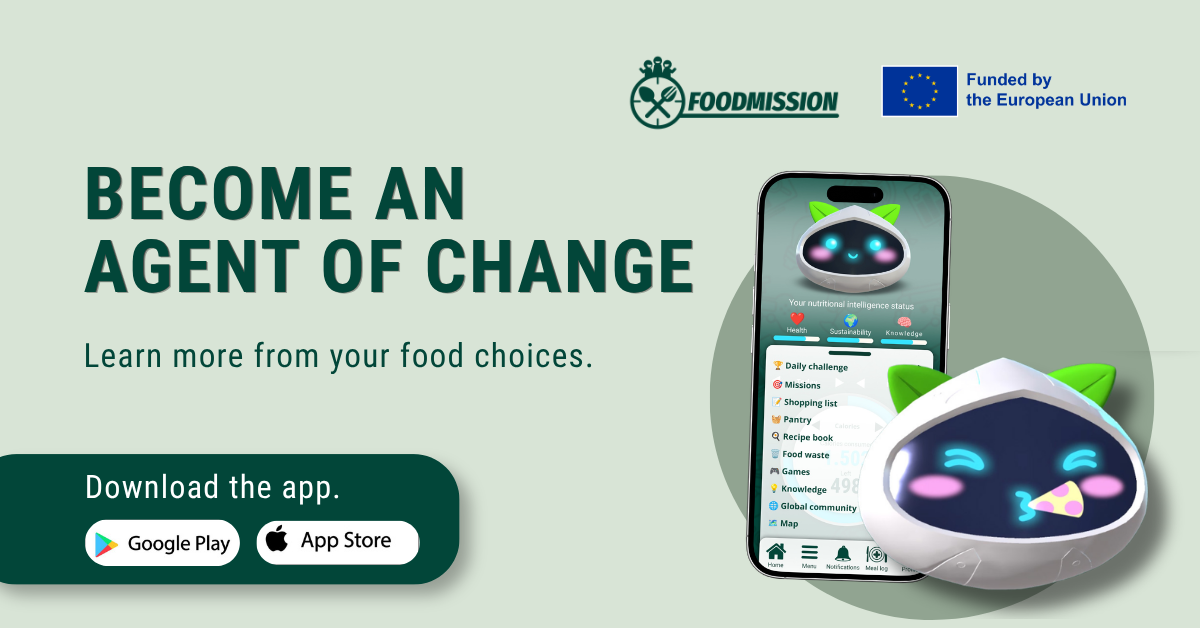
Welcome to the FOODMISSION platform pilot! Thank you for joining us in building healthier and more sustainable eating habits.
Because the app is currently in its Pilot Testing Phase, it is downloaded through the official testing channels of Apple (TestFlight) and Android (Google Play Open Testing). Please follow the step-by-step instructions below for your device.
[!IMPORTANT] Open this guide directly on the smartphone where you want to install the FOODMISSION app before clicking the links below.
📋 Before You Start (System Requirements)
- Smartphone:
- iPhone (iOS): iOS 15.0 or later
- Android: Android 7.1 (Nougat) or later, with the Google Play Store app installed
- Internet Connection: A stable Wi-Fi or mobile data connection
- Storage Space: At least 300 MB of free space on your device
🍏 Option A: Installing on iPhone (iOS via TestFlight)
Apple uses an official app called TestFlight to let participants install pilot versions safely. It takes two simple steps:
Step 1: Download the Apple TestFlight App
- Open the App Store on your iPhone (or tap this direct link: Download TestFlight on the App Store).
- Download and install TestFlight (the blue propeller icon).
- Open TestFlight once installed and tap Continue to accept the terms and conditions.
Step 2: Install FOODMISSION via the Invitation Link
- On your iPhone, tap the official FOODMISSION TestFlight Invitation Link: 👉 https://testflight.apple.com/join/eVPDEzhq
- The link will open inside the TestFlight app (or show a webpage with a button to “View in TestFlight” / “Start Testing”).
- When FOODMISSION appears in TestFlight, tap Accept and then tap Install.
- Once downloaded, tap Open (or find the FOODMISSION icon on your iPhone’s Home Screen).
Keep TestFlight installed on your phone during the entire pilot! Whenever we release improvements or new quests, TestFlight allows you to update the FOODMISSION app easily.
🤖 Option B: Installing on Android (Google Play Open Testing)
On Android, FOODMISSION is distributed through the Google Play Store Open Testing program.
Step 1: Join the Testing Program
- On your Android phone, tap the official FOODMISSION Google Play Testing Link: 👉 https://play.google.com/apps/testing/eu.foodmission.platform
- A Google Play web page will open in your browser. If asked to sign in, log in with the same Google Account that you use on your phone’s Google Play Store app.
- Tap the blue “Become a tester” button.
Step 2: Download from Google Play
- You will see a confirmation message: “Welcome to the testing program. You are now a tester.”
- Scroll down slightly and tap the link “Download it on Google Play” (or tap here to open it directly in Google Play after joining).
- The Google Play Store app will open to FOODMISSION (Early Access / Beta).
- Tap Install and wait for the download to finish.
🚀 First Launch & Permissions
Once FOODMISSION is installed and you open it for the first time:
- Create Your Account / Log In: Follow the on-screen onboarding instructions to register your profile and meet Nutri, your virtual guide.
- Camera Permission (Barcode Scanner): When logging meals or scanning food products, your phone will ask:
“Allow FOODMISSION to take pictures and record video / access the camera?” Please tap Allow (or While using the app) so you can scan product barcodes easily.
- Notifications Permission: When prompted to allow notifications, please tap Allow so you don’t miss daily check-ins, missions, or pilot surveys.
🛠️ Troubleshooting & Frequently Asked Questions (FAQ)
🍏 iPhone (TestFlight) Common Issues
| Problem | Why it happens & How to fix it |
| TestFlight asks for a “Redeem Code” (Código de canje) | Do not open TestFlight manually to look for a code. Close TestFlight, return to this guide (or your email/message), and tap the FOODMISSION Invitation Link again directly from your iPhone. |
| Clicking the link opens a webpage instead of installing | If you tapped the link inside an app like WhatsApp, Instagram, or Gmail, its built-in browser might block redirection. Tap the Safari / Compass icon (bottom right) to open the page in Safari, then tap the link under “Step 2: Join the Beta”. |
| “This beta isn’t accepting any new testers right now” | The pilot testing slot limit may have been reached. Please contact your local pilot coordinator so we can expand the participant limit. |
🤖 Android (Google Play) Common Issues
| Problem | Why it happens & How to fix it |
| “App not available” or “Item not found” in Google Play | Make sure that in the web browser where you tapped “Become a tester”, you are logged into the exact same Google Account that is active inside your Google Play Store app. (Check the profile icon in the top-right corner of both). |
| I joined the beta on the web, but Google Play still says “Item not found” | Google Play sometimes caches old data. Close the Google Play Store app completely, wait 1–2 minutes, and tap the link again. If it persists, go to Phone Settings → Apps → Google Play Store → Storage → Clear Cache. |
| “Your device isn’t compatible with this version” | Ensure your phone is running Android 7.1 or newer and has at least 300 MB of free storage space. |
| I have a Huawei phone without Google Play Services | Because the pilot runs through Google Play Open Testing, devices without the Google Play Store (newer Huawei models using only AppGallery) cannot download the app from this link. Please reach out to your pilot coordinator. We’ll work on an alternative link to download the app. |
💬 Need Help?
If you encounter any issues installing or opening the app, please contact the FOODMISSION Support Team or your local Pilot Coordinator:
- 📧 Support Email: feedback@foodmission.eu
- 🌐 Project Website: www.foodmission.eu
When contacting support, please mention whether you are using an iPhone or Android phone, and include a screenshot of any error message if possible.